

Data visualization is critical in identifying patterns and presenting findings clearly. Modern tools like Google Colab, with its integration of Python libraries, allow for versatile graphing capabilities.
Setting Up Google Colabs
Google Colab is integrated with Google Drive by default, but if the extension is not visible, you can manually enable it.
1.
Click on the + New button (top left corner).
2.
Scroll to More, then click Connect more apps at the bottom of the menu.
3.
In the search bar, type Colaboratory.
4.
Click on Colaboratory and then click Install or Connect.
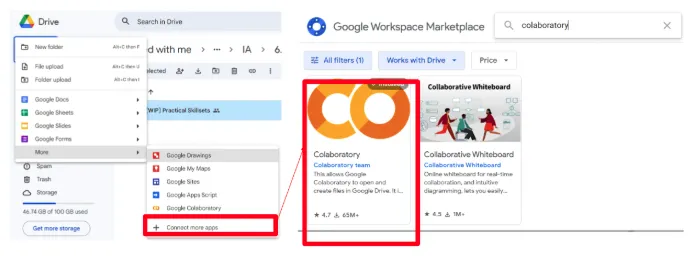
Once installed, there’s no additional software installation required as Colab runs on the cloud
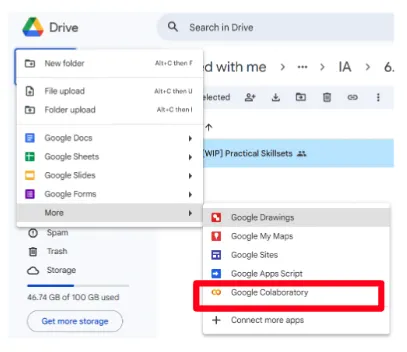
You can now create a Colab notebook via + New > More > Google Colaboratory.
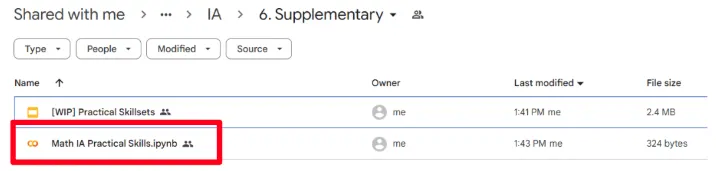
Colab notebooks have a “.ipynb” extension.
Writing and Running Code on Google Colabs
1.
Click the "+ Code" button at the top of the notebook or at the bottom of an existing cell.
Alternatively, press Ctrl+M+B (Windows) or Cmd+M+B (Mac).
2.
You can write python code directly into the cell

3.
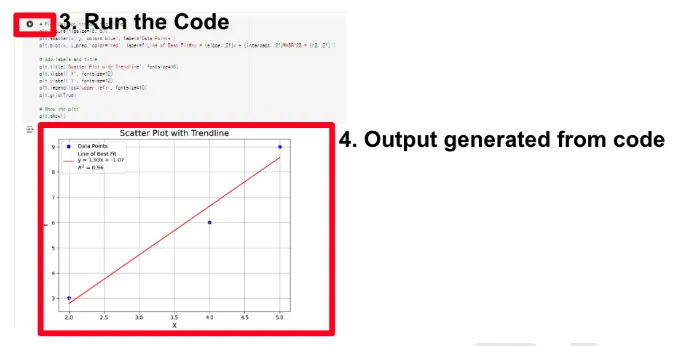
Click the play button ( ) on the left of the cell. Or use Shift + Enter to execute the cell and move to the next one.
) on the left of the cell. Or use Shift + Enter to execute the cell and move to the next one.4.
The output generated from the code (calculations, graphs, charts, and other visualizations) is displayed immediately below the code
Writing Python Code for Google Colabs with ChatGPT
•
Even if you're not familiar with Python syntax, you can describe your requirements or tasks in plain language and receive code suggestions that can be directly copied into a Colab notebook.
•
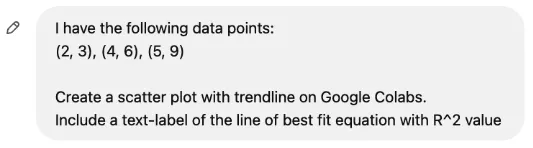
Sample Input Prompt
◦
I have the following data points: (2, 3), (4, 6), (5, 9) Create a scatter plot with trendline on Google Colabs. Include a text-label of the line of best fit equation with R^2 value
•
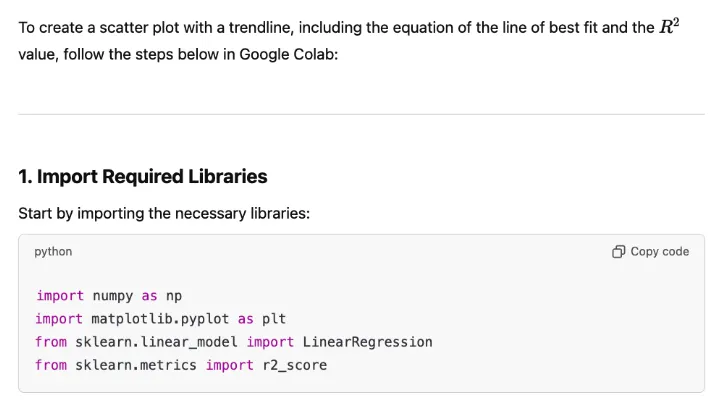
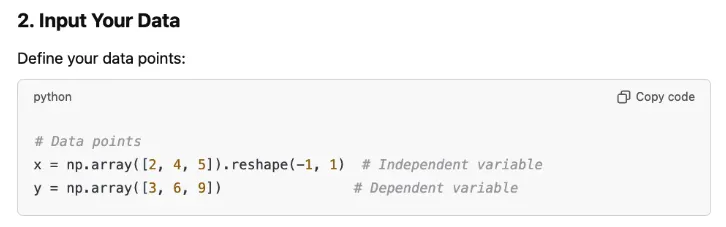
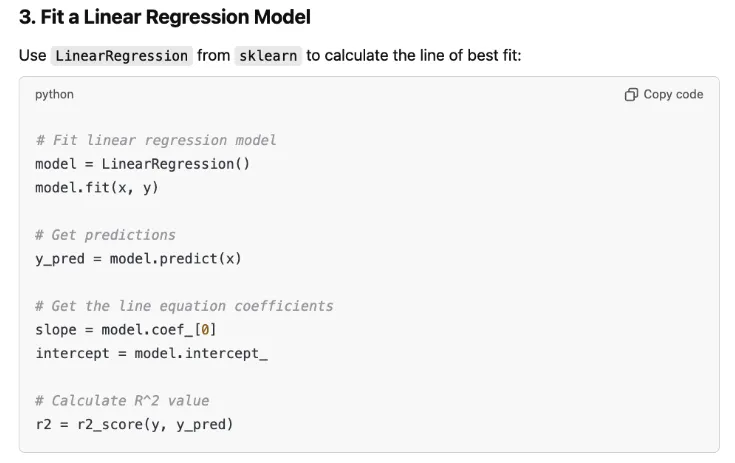
Output from ChatGPT
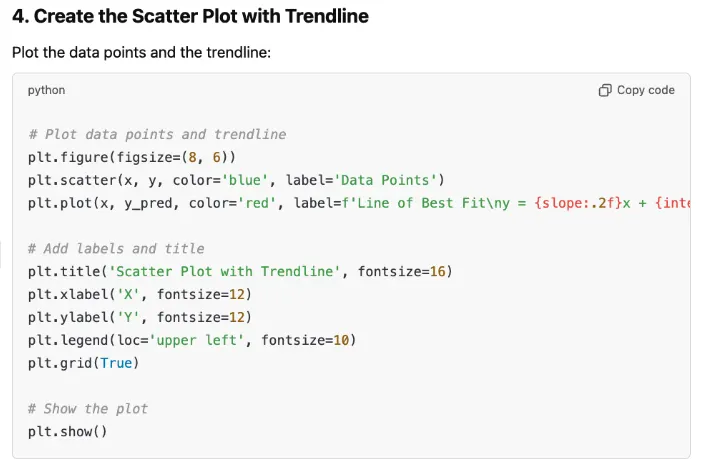
•
Enter the code generated by ChatGPT into Google Colabs
•
Now you are all set! Basic level coding has never been easier thanks to ChatGPT. Simply copy the code into the Google Colab cells as shown below.
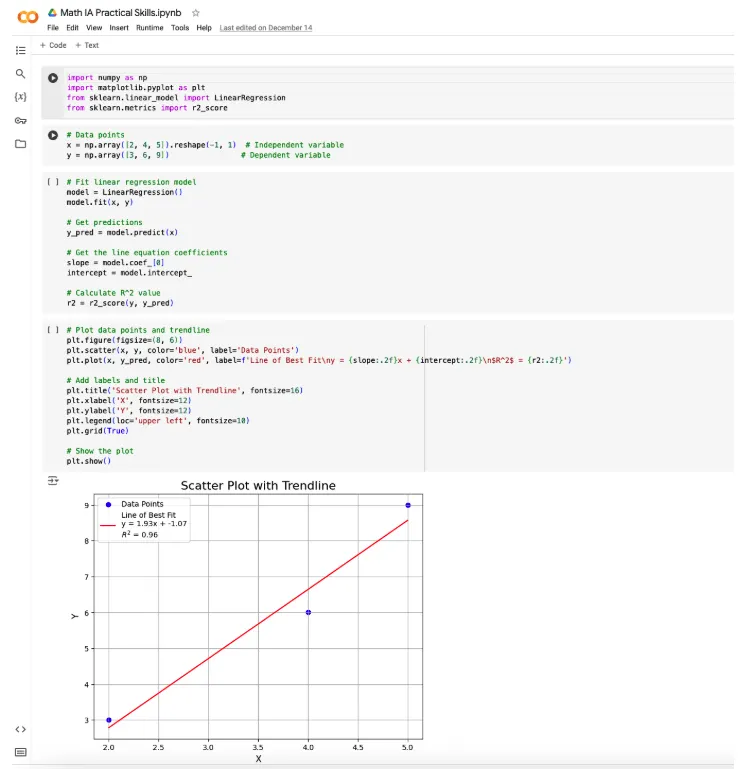
•
Google Colab organizes your work into cells, and each cell can hold code or text.
•
This structure, known as modular development, is one of the defining features of Colab and provides a lot of flexibility, especially for writing, debugging, and running code.
◦
Code is easier to manage when split into logical chunks, as errors in one cell don’t stop other cells from running.
◦
For example:
•
One cell for importing libraries.
•
Another for defining functions.
•
Separate cells for running experiments or creating visualizations.
•
Before executing the code on Google Colabs
◦
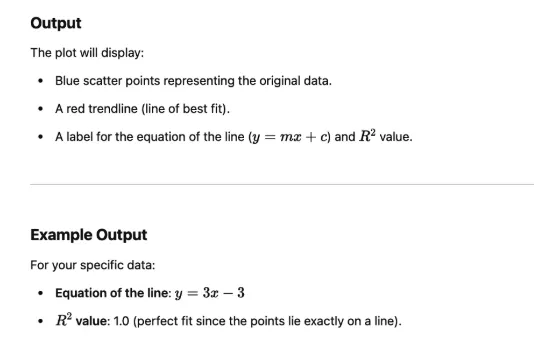
ChatGPT is not perfect; it is prone to hallucinations and errors.
◦
It is up to you to verify that the code generates a correct output that meets your expectations and modify the code if necessary
◦
ChatGPT will offer an explanation of how the code works, but you can always ask additional follow up questions to better understand and modify the code.
Additional Tips for leveraging ChatGPT:
Debugging Assistance
•
If you encounter errors in your Colab notebook, copy the error message and paste it into ChatGPT. It can often identify the problem and suggest solutions.
Learning from Generated Code
•
For beginners, use the code examples provided by ChatGPT to understand basic Python concepts like loops, functions, or data manipulation.
Ask for Explanations
•
You can ask ChatGPT to explain any part of the code it provides, breaking it down step by step, so you understand how it works.
Integrating with Libraries
•
Use ChatGPT to learn how to integrate popular Python libraries in Colab (e.g., NumPy, Pandas, Matplotlib, or TensorFlow) by requesting code snippets or tutorials.
Code Optimization
•
If your code feels slow or inefficient, share it with ChatGPT and ask for tips on optimization or faster alternatives.
Visualization Help
•
Describe the type of graph or visualization you need (e.g., "Create a scatter plot with a trendline") and get Python code that uses libraries like Matplotlib or Seaborn.